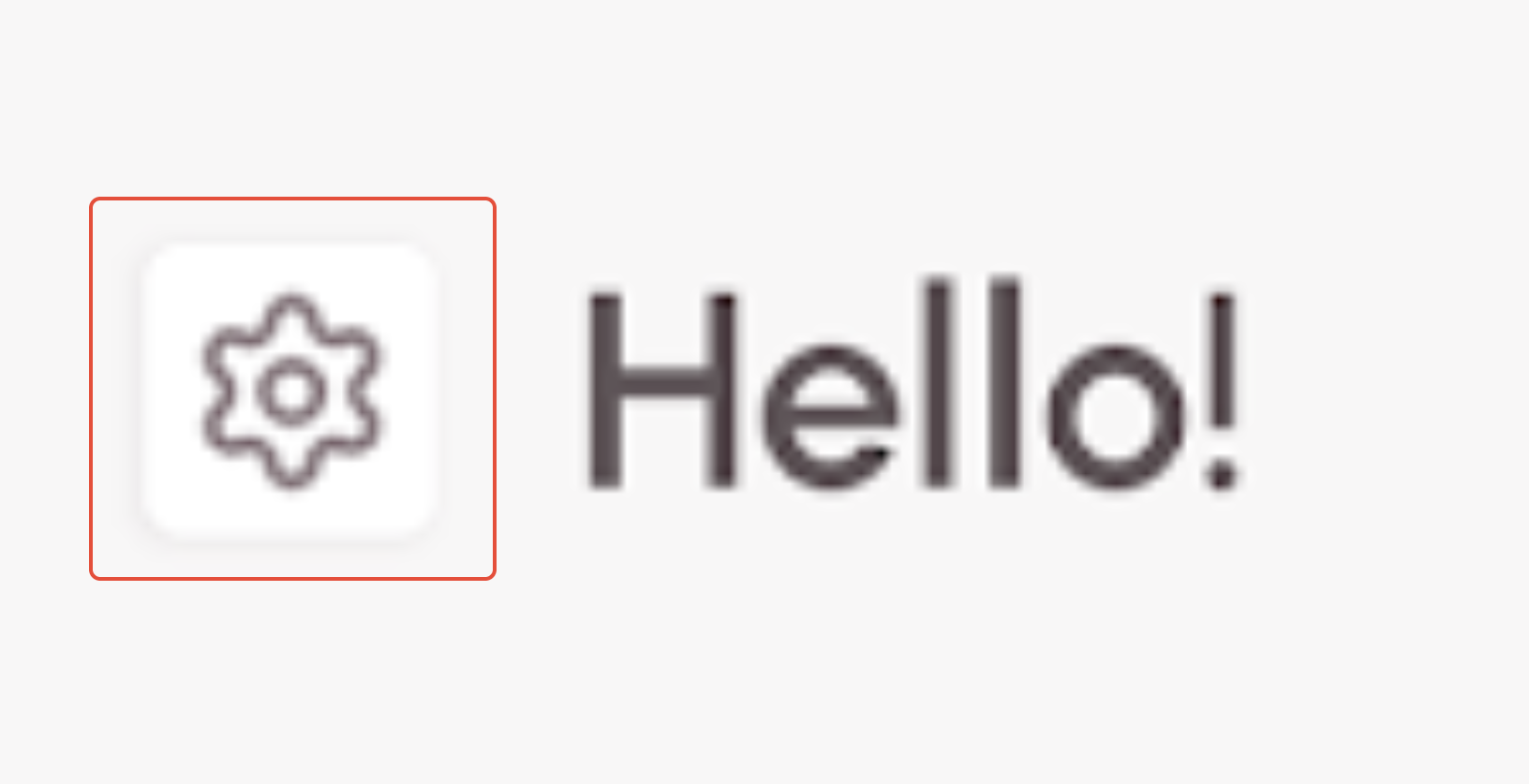
To access the app settings, tap the gear icon to the left of the greeting at the top of the Home screen.
The settings are listed in three sections:
Account Section
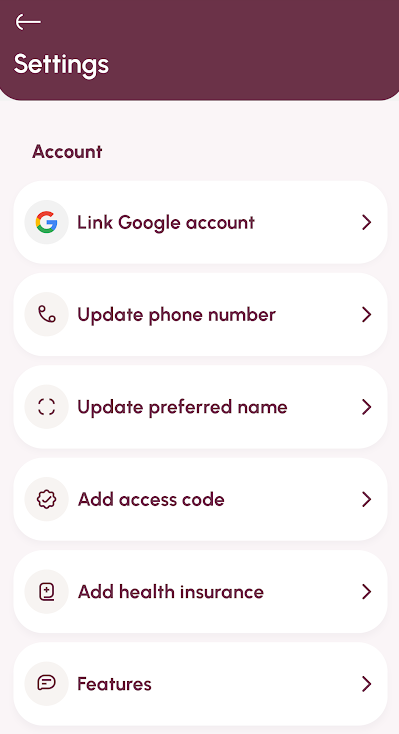
NOTE: The options available will vary depending on your membership. For example, if you joined using an access code or by entering your health insurance, you will not see those options in your account.
Link Google/Apple account
If you'd prefer to use your email to sign in, you can link the app to your Google or Apple account here. You can also update the linked account if your email changes.
NOTE: WEconnect is unable to update your email settings as these are controlled by your linked account.
Update your phone number
If your phone number changes, you will need to update the phone number on your account so that you are able to receive the security code sent via SMS when you log in. You can do that here.
Update preferred name
If you go by a different name than you entered when you created your account, enter it here.
Add access code
If your employer, insurance plan or healthcare provider gave you an access code to unlock additional features after your created your account, this is where you will enter that code.
Add health insurance
If you want to check to see if your insurance plan participates with WEconnect, this is where you will enter your insurance information.
Features
This is where you can enable/disable features within the app. For example, there is an option to enable a timer for use when checking into meditation routines.
WEconnect Section
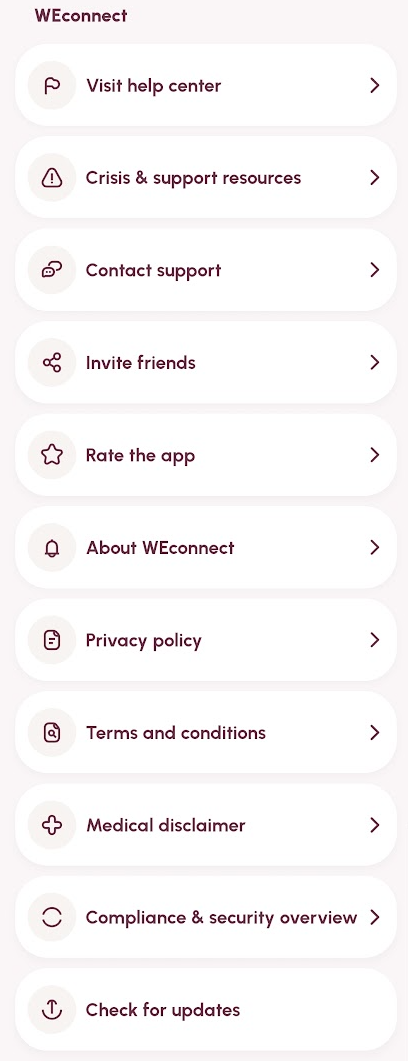
The WEconnect section contains
- More information about the company, including our privacy policy, terms and conditions, compliance and security information and important medical disclaimers.
- Links to crisis support resources.
- Links to reach our technical support help center as well as create a ticket for our technical support team.
- An option to rate the app and invite friends to join WEconnect.
- An option to check for recent app updates.
Options Section
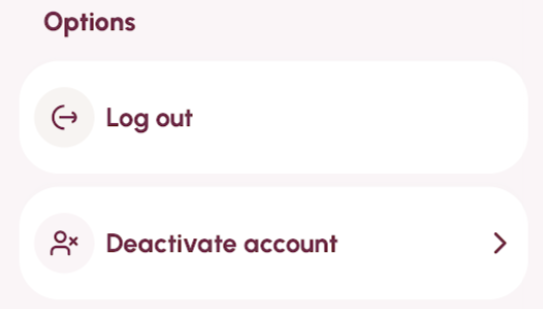
The final section contains the option to log out of your account, or deactivate your account if you are no longer using it. You can find more information on deactivating your account here.
Was this article helpful?
That’s Great!
Thank you for your feedback
Sorry! We couldn't be helpful
Thank you for your feedback
Feedback sent
We appreciate your effort and will try to fix the article