First you'll need to locate and install the WEconnect Health app in your device's app store. The app will have the following name and logo:
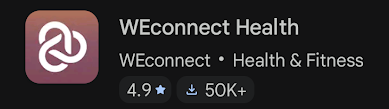
Once installed, open the app to begin setting up your account.
- Tap the 'Sign up' button on the welcome screen.
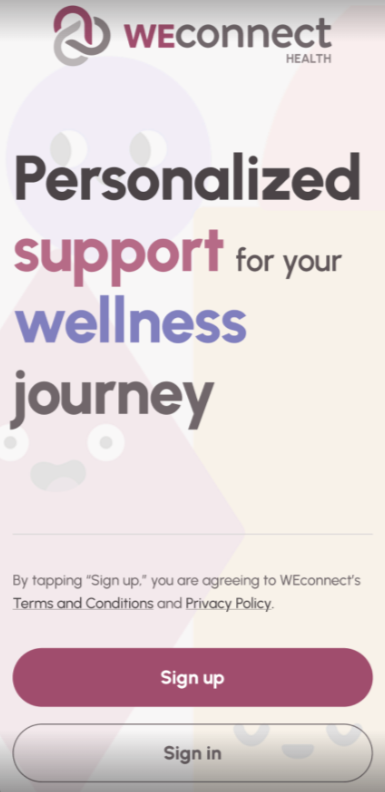
- You can create an account using your mobile phone number or your Google account. To use your Google account, tap the 'Continue with Google' button to enter your Google credentials.
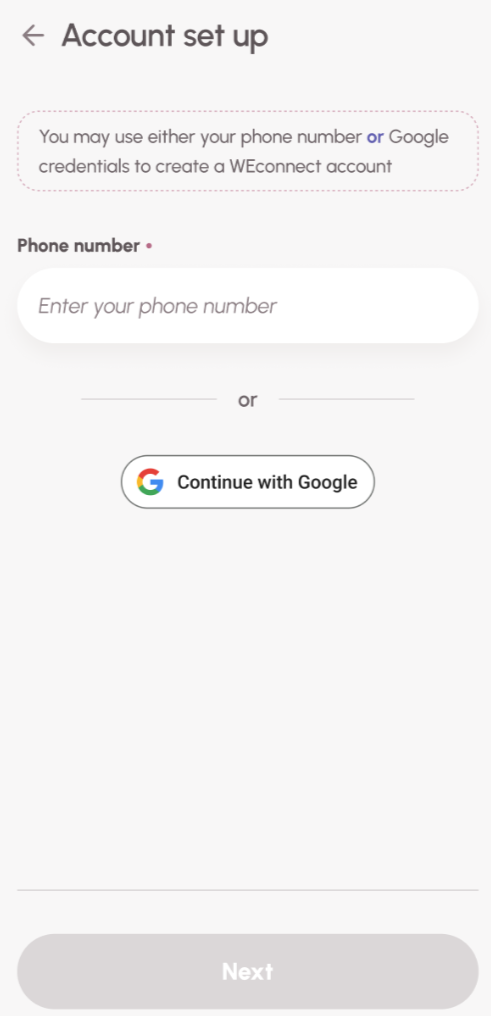
- To use your mobile phone number, enter it (including the area code) in the space provided and tap the 'Next' button. A secure code will be sent to your mobile device via SMS to verify the number. You'll be asked to enter it on the next screen.
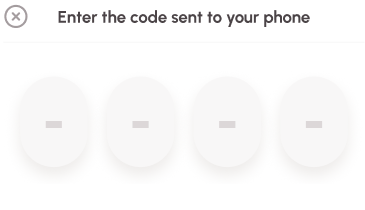 NOTE: If you receive an error, you can use the Text or Call buttons to receive a new code. Be sure to verify that you have entered the correct phone number and that you are using the most recent code sent to you.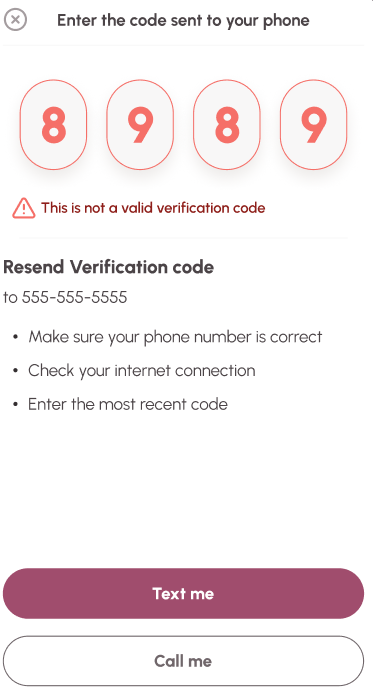
- The two main setup options: using information from a participating insurance plan or by using an access code provided by an employer, health care or insurance provider. Select the appropriate option for your situation.
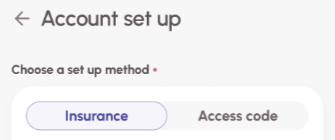
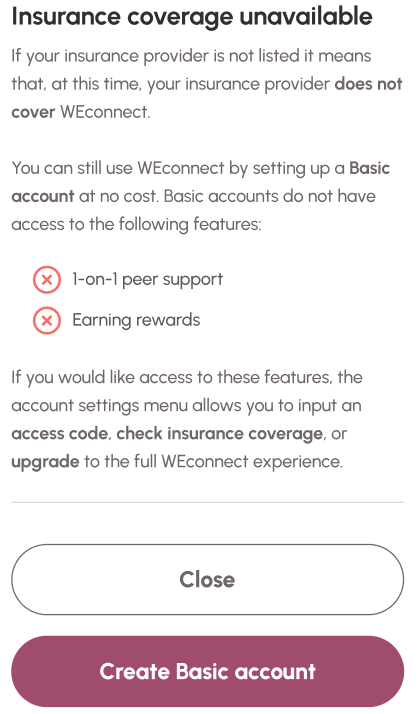
NOTE: If neither option applies, you can tap 'Skip' at the bottom of the screen to create a Basic account. You'll see the following screen, and can tap' Create basic account' to continue.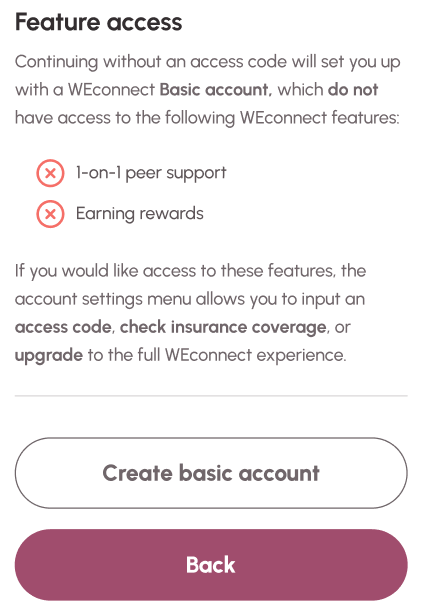
Creating an account using insurance:
- Tap the 'Insurance' button and complete the required fields to enter your insurance plan information.
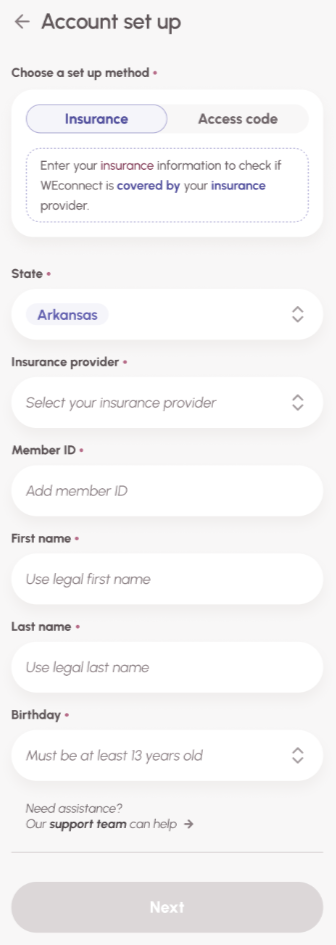
- Your insurance information will be verified, and if your plan is eligible for WEconnect, your account will be created. If your plan is not eligible for the full WEconnect experience, you will be given an option to create a Basic account.
Creating an account using an Access code:
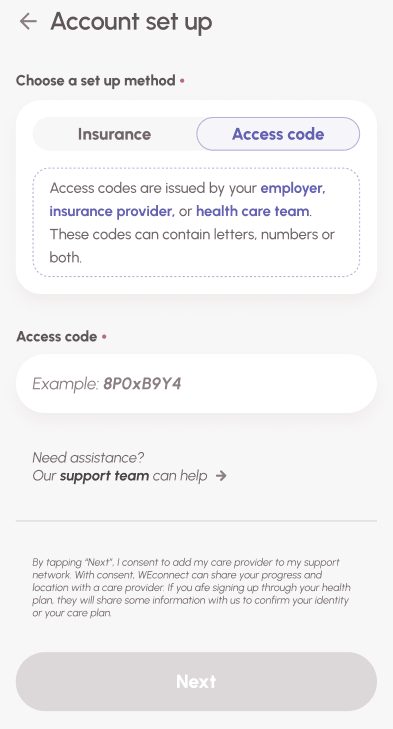
- Tap the 'Access code' button and enter the access code that was provided by your employer, healthcare provider or insurance company. Then tap 'Next'.
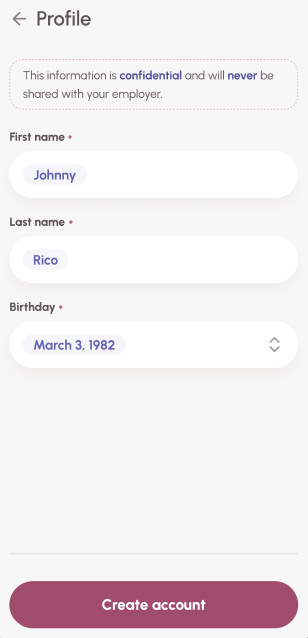
- Enter your name and birthdate on the Profile screen, then tap the 'Create account' button.
Was this article helpful?
That’s Great!
Thank you for your feedback
Sorry! We couldn't be helpful
Thank you for your feedback
Feedback sent
We appreciate your effort and will try to fix the article